
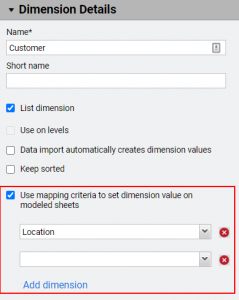
How do I use derived dimensions in Workday Adaptive Planning?
Among the many new features presented in the 2020R2 release is the concept of derived dimension values. This applies only to Modeled Sheets with no splits and grants planners the flexibility to make dimension values conditional upon other dimension values for each record. So how does it work? Navigate to Dimensions in Model Management, select…
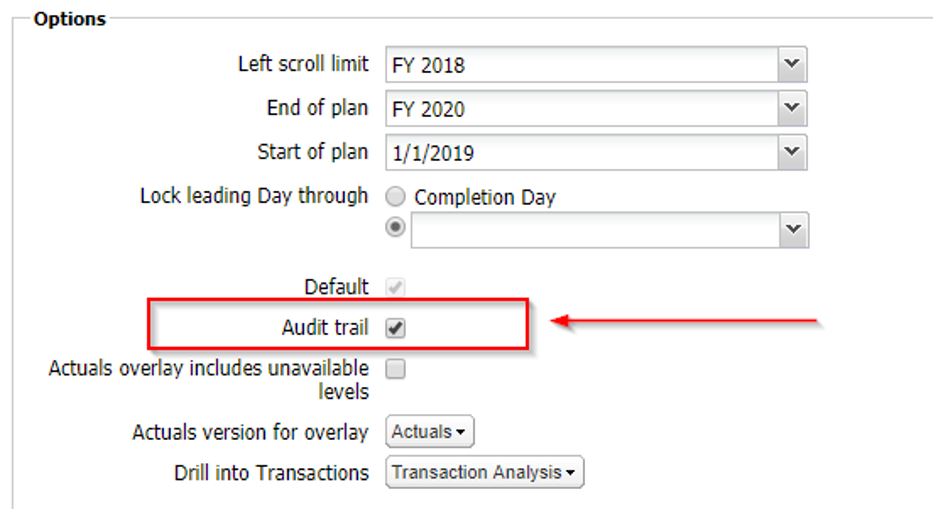
How Do I Use the Audit Trail to Improve Transparency in Workday Adaptive Planning?
So, you’re preparing for your executive review meeting and you decide to login to Workday Adaptive Planning one last time to verify that your Forecast looks accurate. Wait, WHAT??? This is NOT the same number you were looking at last Friday. What happened? Don’t panic!! Did you know that you can easily track data changes…

How Do I Download and Upload Modeled Sheets in Workday Adaptive Planning?
Unique to Modeled sheets is the ability to download and upload them to preserve designs and reuse as needed. This is most helpful when you wish to reutilize a Modeled sheet from a sandbox or development instance. Upon downloading a Modeled sheet, an XML file is generated, which can then be opened using a text…
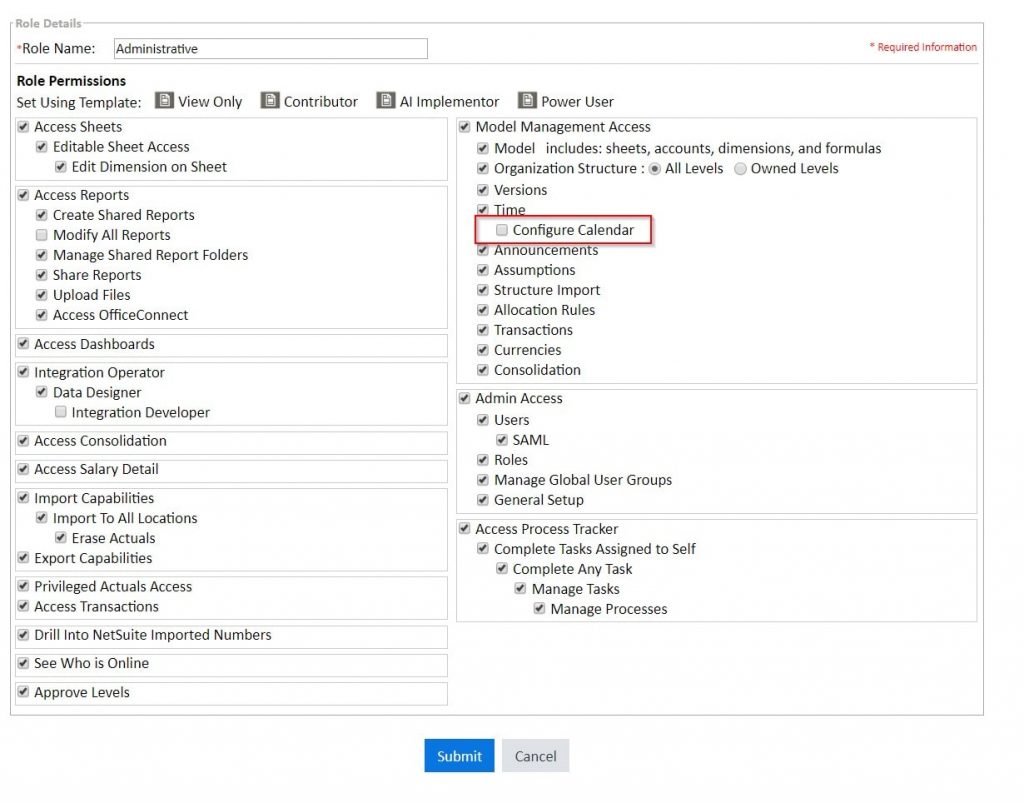
How Do I Change the Calendar Configuration in Workday Adaptive Planning (Adaptive Insights)?
Administration -> Roles and Permissions – Update Role Permissions to Configure Calendar a. Check off Configure Calendar under Time 2. Modeling -> Time – On the Time page, select Import Calendar …
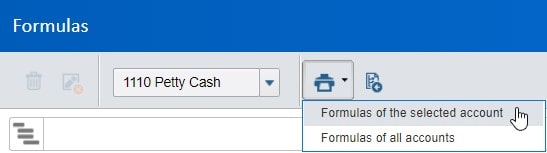
How Do I Maintain Shared Formulas in Workday Adaptive Planning?
Prior to Adaptive’s 2020R1 release, maintaining multiple account formulas across many levels and different versions was not an easy task. Fortunately, this has now changed with the introduction of new Shared Formula functionality: exporting and importing. Exporting Do you find yourself needing to check which levels contain different formulas for a single account? What about…
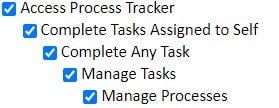
How Do I Utilize Processes and Tasks in Workday Adaptive Planning?
Processes and tasks make it easy to track progress on important action items, such as a yearly budget or monthly forecast completion. A handful of permissions are available for Roles in order for someone to access the Process Tracker and be either a process administrator or assignee. Processes Overview By hovering…
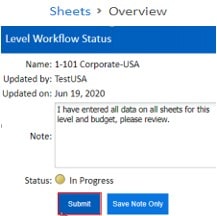
How Do I Use Workflow in Workday Adaptive Planning?
Workflow is a feature that assists with managing data entry by Level and Version. It needs to be requested by your Workday Adaptive Planning representative. Once activated, your planning versions are ready to go, but if you wish to utilize Workflow with Actuals you must navigate to the Versions settings under Model Management and select…
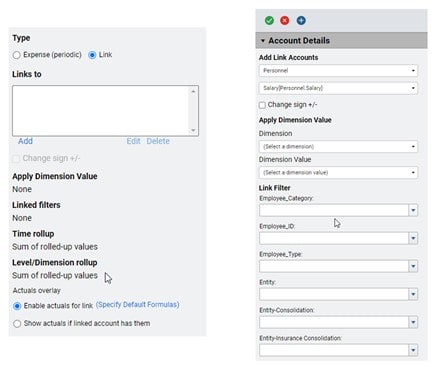
When Should I Use Linked Accounts in Workday Adaptive Planning?
In Workday Adaptive Planning, Linked Accounts are accounts that connect to cube or modeled sheet accounts. Linked accounts can be general ledger, custom accounts, or cube standard accounts. When setting up a Linked Account, select the Add to add one or more source accounts. Specify the model and account to link. Dimension value can be…

How do I maintain your DIMENSIONS and ATTRIBUTES at the SAME TIME to SAVE TIME?
As with most technologies, there are usually multiple ways to accomplish the same task. When performing dimension and/or attribute maintenance, the first step is to quantify the number of changes that need to be made. If you have 1 or 2 minor changes, then updating the structures manually might be a good way to go. …
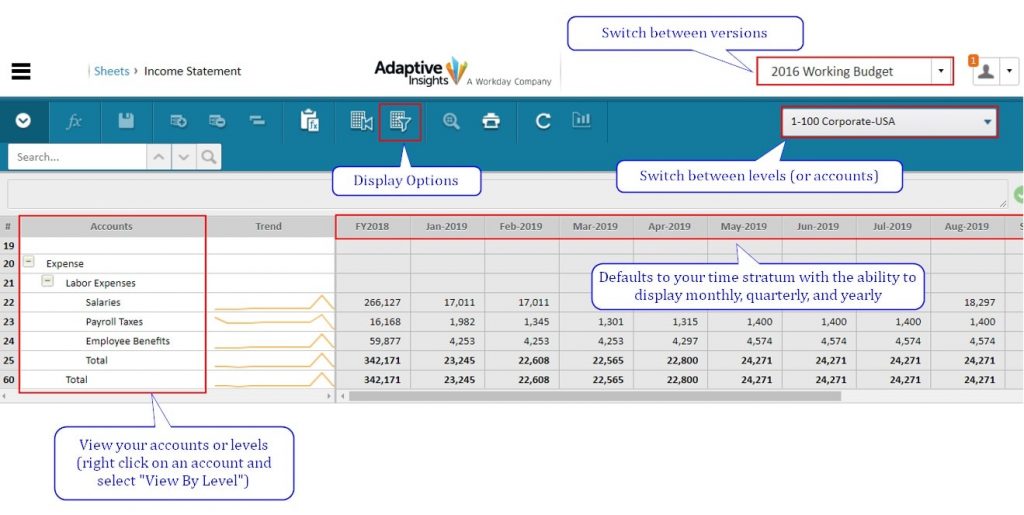
When Should I Use Each Sheet Type in Workday Adaptive Planning?
Do you find yourself wondering which sheet type to choose when building different models? Understanding your data and how each sheet works is key to determining which sheet will best fit your business needs. Standard Sheet If you are simply looking to display or enter data into accounts by levels, version, and time – utilize…

What is the SWITCH Formula in Workday Adaptive Planning and How Do I Use It?
Have you ever wondered what that switch formula was under the Logical section of the formula bar? The switch formula is a handy expression to use instead of many nested if statements. Adaptive Insight’s formula assistant provides this definition: Switch (ORIG_EXPR, VAL_OR_RANGE1, EXPR1, VAL_OR_RANGE2, EXPR2, …, DEFAULT_EXPR) This formula can appear quite confusing, but we…

What is the difference between DIV and IF versus DIVF and IFF in Workday Adaptive Planning?
When building out your sheets in Adaptive Insights it is critical to keep in mind the sheet’s load time and performance. There are many ways to improve load time of your sheets, one of which is to optimize the DIV and IF functions. DIV vs DIVF By adding an ‘F’ at the end of the…

When Should I Use Access Rules to Secure Data in Workday Adaptive Planning?
Prior to the 2019.3 release, security was restricted to level access control in conjuncture with account, version, and sheet settings . Limited no longer! Security is more robust and now includes access rules on accounts and custom dimensions in order to limit specific intersections of data that users and groups can view or edit. Levels,…
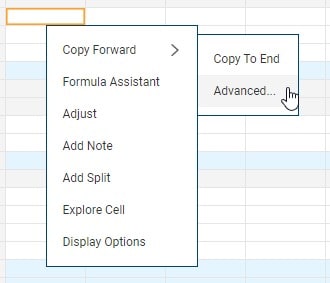
How do I use Copy Forward, Adjust, and Breakback for Data Spreading in Adaptive Sheets?
Workday Adaptive Planning (formerly Adaptive Insights) offers several options for data spreading in sheets. Copy Forward, Adjust, and Breakback are all data spreading options for different purposes. Copy Forward is best used for pushing one value out for a certain amount of time. Adjust is best used to correct deficits or overages. Breakback is best…
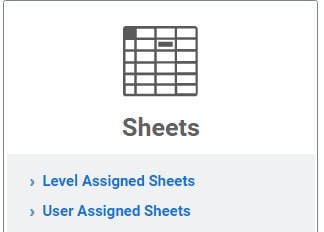
How do I choose between User Assigned Sheets vs Level Assigned Sheets in Workday Adaptive Planning?
Sheets are used to store data and can be “assigned” by Level or by User. The administrator can manage these assignments by going to the Modeling menu and selecting the appropriate sheet type. Level Assigned Sheets Level assigned sheets are only visible or editable for users who have security access to the Level that was…
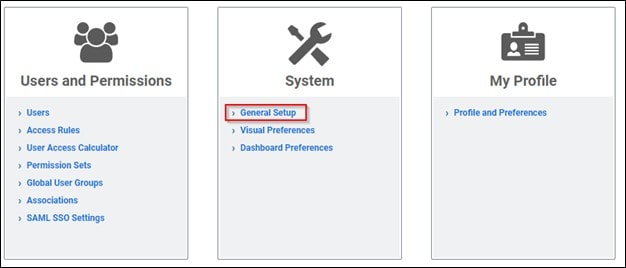
How do I address high disk usage in Workday Adaptive Planning?
When building out planning models RAM and Disk are two things’ companies frequently consider when comparing different solutions. For Workday Adaptive Planning, high disk usage can have several impacts. This ranges from slower response times to difficulty performing backups and recoveries for the Workday Support team. In general, Workday cannot guarantee backups for any model…
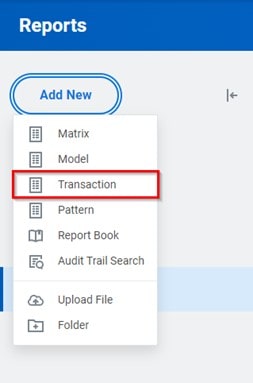
How do I use Transaction Reports in Workday Adaptive Planning?
What are Transaction reports? Transaction Reports are used to display data from transactions. A transaction is a set of accounting entries which are grouped together and represent a business action. Transaction Reports can include columns but cannot specify what are in the rows and have similar features to other reports such as the capability to…

How do I use Model Reports in Workday Adaptive Planning?
What are Model Reports? Model reports are list reports from information on Model Sheets. In Model Reports, users can choose what columns they would like in their report and can further narrow the information based on columns filters. Creating reports and functionality To create a Model Report, users need the proper permissions enabled to Access…
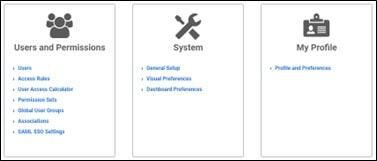
When and how do I use the User Access Calculator in Workday Adaptive Planning?
The introduction of access rules in addition to version access have given greater flexibility for Workday Adaptive Planning security. Customers can now be set up security by Level, Account, Version, and up to three custom dimensions. To help administrators troubleshoot access issues the User Access Calculator was created. This will help determine if users have…
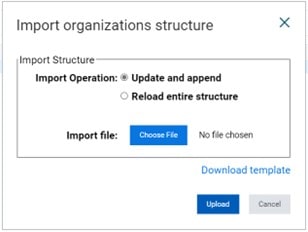
What are the Top 5 2022R1 Updates in Workday Adaptive Planning?
Update and Append Structures for Import: Initially the Update and Append options were their own option selections when importing levels, accounts, and dimension structures. With the new 2022R1 update you are now able to add new values and update existing Levels, Accounts (Assumptions, Custom, Cube, General Ledger, Metric, and Modeled), and Dimensions with 1 import…
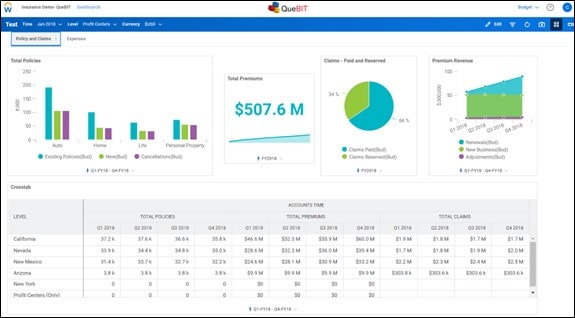
How do I build Dashboards (in 10 minutes) in Workday Adaptive Planning?
Dashboards are a great way to share data and company information in an easily digestible format. Every client we talk to wants dashboards, but it usually falls at the bottom of the priority list. Luckily, creating dashboards is not difficult and the video below walks you through building a dashboard. Easy steps to follow: 1.…
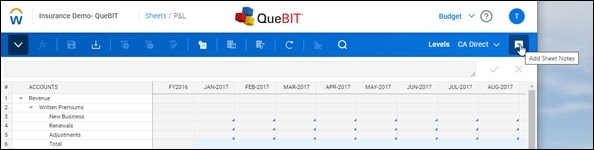
How do I use Commentary in Workday Adaptive Planning?
Workday Adaptive Planning offers many ways to comment on data. It can be challenging to determine which type of note is needed for each specific situation. Below is a summary of the types of notes and when they should be used. Sheet Notes When entering data in a sheet you can add a note to…
How do I make OfficeConnect Reports Dynamic in Workday Adaptive Planning?
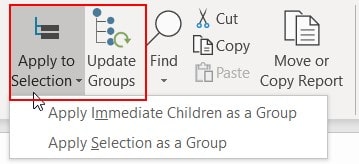
Structure changes in companies are common, whether it be in their organization structure, account structures, or dimensional structures. It is a painful, tedious task to manually adjust reports to factor in these updates. With Workday Adaptive Planning’s OfficeConnect tool, the labor-intensive process is eliminated. Introducing Groups! In Workday Adaptive Planning’s 2020R1 release, Element Groups feature…
How do I use Advanced Features in OfficeConnect in Workday Adaptive Planning?
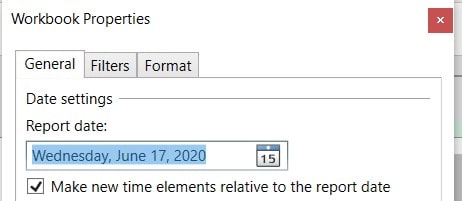
OfficeConnect has many helpful features that enable detailed report creation tailored to customer needs. Below are a handful of advanced features worth pointing out. Absolute vs Relative Time Most often you will want to open a report and view it as of a certain date without manually updating the report. By properly building your report…
How do I build OfficeConnect Reports from Existing Excel Files in Workday Adaptive Planning?
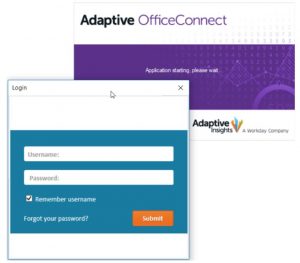
“Work smarter, not harder.” This is a popular, useful saying in our world, and frankly it’s one worth living by. Apply this thought process when building OfficeConnect reports. Take advantage of what you already have and utilize your existing Excel reports rather than starting from scratch. Save time, preserve your existing formatting, and maintain Excel…
How do I merge Workbooks in Adaptive OfficeConnect?
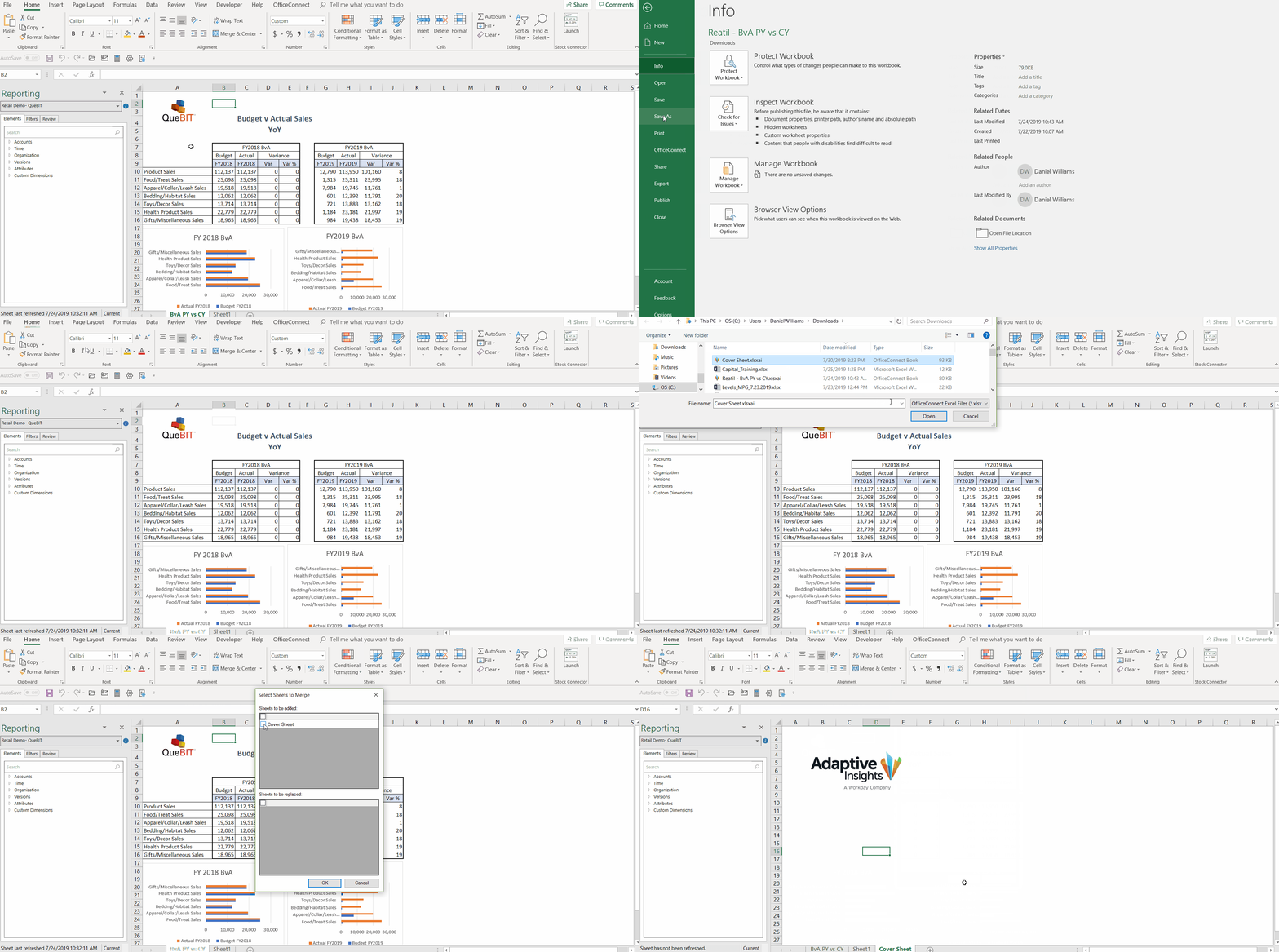
Need to move an OfficeConnect Worksheet into another worksheet? Use the ‘Merge Workbook’ feature within the target worksheet to bring in all the worksheets you need over. Navigate to File -> OfficeConnect -> Merge Workbook You will be prompted to select the Source file you wish to merge with the Target Adaptive OfficeConnect sheet. Then…
How do I get started with Adaptive OfficeConnect? (Basics, Menu, etc.)
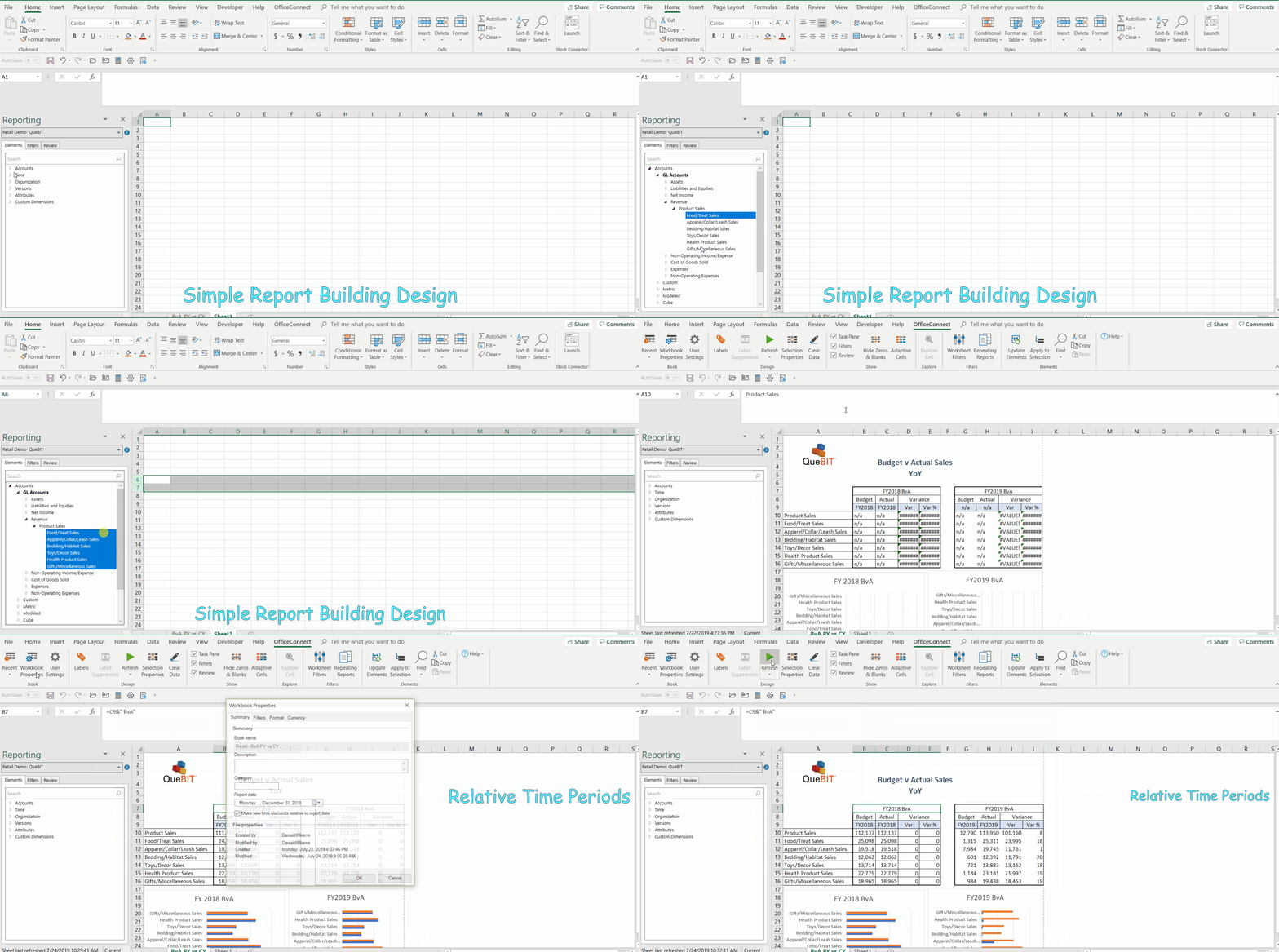
Do you need to create a new or modify an existing Adaptive OfficeConnect report and don’t know where to start? Well, look no further. We are here to help you get started with Adaptive OfficeConnect Reporting! Adaptive OfficeConnect integrates your Adaptive Insights data directly with Excel, Word, and PowerPoint. It is a breeze to create…
How do I Use Dashboards to Sort and Limit Data in Workday Adaptive Planning?
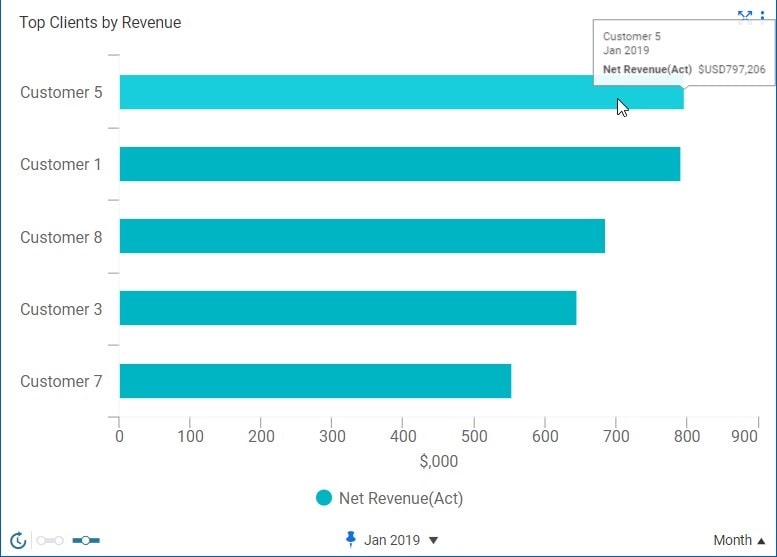
Users commonly ask if they can sort their data by ascending or descending order when viewing in a HTML report. Unfortunately, the answer is NO. How you set up your rows in a HTML report is how they will display once the report is run. However, Dashboards do allow users the option to sort data,…
How do I use Formula Validation in Workday Adaptive Planning?
As you go through the process of building out your Financial Model with Adaptive Insights, there will be many formulas you need to create to represent accounts and business calculations. When that number of formulas becomes large enough, tracking down any formula errors can be difficult and time consuming. Luckily, Adaptive provides the Formula Validation…

How do I fix a Headcount or New Hire Formula that Returns Error in Workday Adaptive Planning?
When viewing the calculated Headcount or New Hire accounts on a standard sheet you may receive “Error: This formula refers to a time period which does not exist”: When using dot notation, users will get the above error on the Headcount formula when an Employee’s Start Date is prior to…