
Templates and Pins in PAW
Reports become an essential part of a planning platform like Planning Analytics Workspace (PAW). Developers and users spend hours building their reports. One aspect of report building is to have a consistent look and feel across different reports. A template helps the report builders achieve the consistency. Although a template is a useful tool to start building a report, it cannot help us update a report because we cannot apply the changes on a template to an existing report. Instead, we utilize a pin in PAW to copy an object from one report to another. The article will cover how to create a template and pin step by step.
Creating and Using PAW Template:
- Create a template by putting the template components in a regular PAW book.
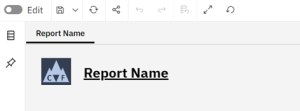
For example, the screenshot below shows a PAW book with the company logo and the report name.
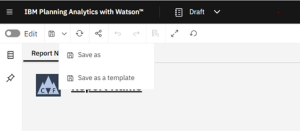
- Save the PAW book in #1 as a template.
- Set the template as your default template or global default template (for all users) if needed. If a template is set as your default template, you will start a new PAW book with the template instead of a blank PAW book. If a template is set as the global default template, all users will see the template when they create a new PAW book.
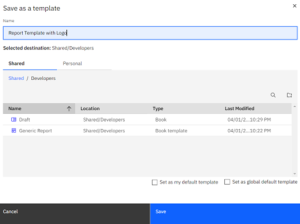
The default template will have the text “My default template” after the name of the template.

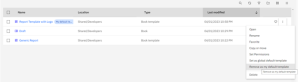
The default template setting can be removed by clicking the report option and then “Remove as my default template”.
Creating and Using Pin:
- Open the report with the object that you want to pin.
For example, we want to pin the refresh button.
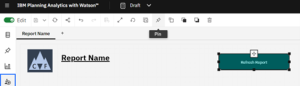
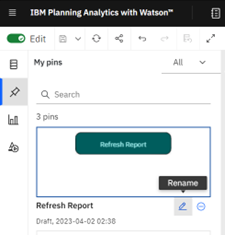
- Pin the object by clicking the Pin icon. Please note that the Pin icon is only available in the edit mode. After you pin an object, it will be available on the list of Pins and it can be used in other reports. We can rename a pin to help us search for the pin in the future.
For example, we will rename the refresh button from “Refresh Report” to “Refresh Button”.
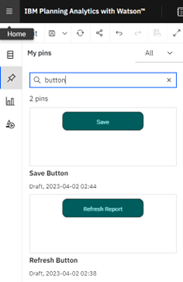
- When we want to use the object that we pinned, we can search for it from the list of pins.
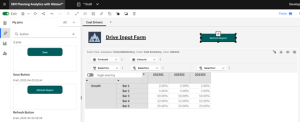
- We add a pin to the current PAW book by double clicking the pin.
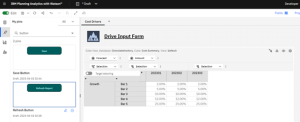
The Pin is added to the current PAW report. The report builder will save time to add and configure the refresh button when adding an object from a Pin.
The PAW template and pin are great tools for a report builder to create many reports with the same structures, such as front size, button, and logo. An object, such as a button, requires many configurations. Using a template or pin can save the report builder a lot of time. A template is helpful when building a new report while a Pin is useful when we want to copy an object to many reports.