
Process Log Cube
We sometimes want to record the process activities to analyze the usage of processes or to troubleshoot issues. One of the solutions is to create a process log cube. There are many ways to build the cube depending on the activities and parameters that we want to record. In this article, we will explore a simple process log cube. The sample cube can also be upgraded to record many more activities in the future.
Before we discuss how to build the Process Log cube, we want to explore some use cases of the cube. For example, a user ran a process to calculate bonus in the Workforce Planning cube. However, the results are different from what the user expected. An administrator can check the Process Log cube to see whether the process parameters were entered correctly or not. Another example is about loading data into the GL Summary cube. An administrator loaded the GL data into the GL Summary cube on the third business day of the month. The updated GL data was available on the fifth business day. On the seventh business day, the administrator is taking sick leave. Another administrator can quickly go to the Process Log cube to see whether the updated GL data was loaded to the GL Summary cube or not. These are a few examples of the benefits from the Process Log cube. We will go over how to build the Process Log cube in the next section.
List of Objects
- Process Log Cube
- }Processes Dimension (auto-generated dimension)
- Lines Dimension
- Process Log Measures Dimension
- ProcessLog Process
- TestProcess1 (for testing purposes)
Process Log Cube
The Process Log cube consists of three dimensions which are }Processes, Lines, and Process Log Measures. However, the cube can have more dimensions if we want to capture other aspects of process activities.

Dimensions of Process Log Cube
In our sample cube, we want to capture the start time, run by, and process parameters. We will create three elements in the measure dimension to capture these values. The information in the cube can be customized. For instance, the start time can be GMT, Local Time, or even the server time.
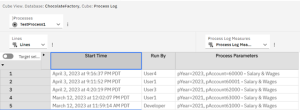
Sample Cube View
}Processes Dimension
The }Processes dimension is auto generated. It has the list of all processes in the database.
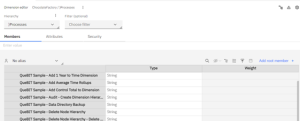
}Processes Dimension
Lines Dimension
The Lines dimension is used to store each log event from the process called SYS.ProcessLog Process which is executed by the process that we want to record its execution information. For example, we have a load process called TestProcess1, we will put the SYS.ProcessLog process in the Epilog of the TestProcess1 process. If we run the TestProcess1 process three times, we will see the records of the runs on line 1 -3. Line 1 is stored the latest event in our example.
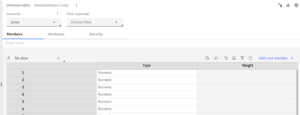
Lines Dimension
Process Log Measures Dimension
The Process Log Measures dimension has the measures which capture the information of processes. In our example, we have the Start Time, Run By, Process Parameters measures. We can add more measures, such as End Time, Process Duration, Data Source, etc.
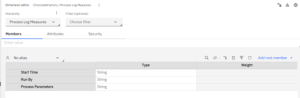
Process Log Measures Dimension
SYS.ProcessLog Process
This process is executed from the process (target process) from which we want to record its information. We can put the SYS.ProcessLog process in Prolog or Epilog of the target process. However, it is not unusual for having the SYS.ProcessLog process in all other processes. The SYS.ProcessLog process has three parameters which are pProcess, pStartTime, and pParameters. The first parameter, pProcess, takes the name of the target process. Please note that the name has to be exactly matched with the process name in the }Processes dimension. The pStartTime parameter takes the start time of the target process. The last parameter, pParameters, captures all parameters from the target process. We will discuss how to set these parameters when we look at the sample process called TestProcess1.

Parameters of the SYS.ProcessLog process
We have the code of the SYS.ProcessLog process in the screenshot below. The code in Prolog is divided into three sections: Define Constants, Move Records, and Record Parameters. The code is pretty self-explanatory, so we will not discuss the code line by line. There is no code in Epilog.
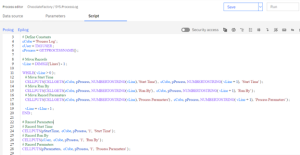
The code of the SYS.ProcessLog process
TestProcess1
The process called TestProcess1 is a sample process that shows how to call the SYS.ProcessLog process. It also has the details on how to provide the parameters to the SYS.ProcessLog process. For pProcess, we use the GETPROCESSNAME function to find the name of the TestProcess1 process although we can manually set it as a constant. The time parameter can be in any format but we use the commands called NEWDATEFORMATTER and FORMATDATE to help us get the time in the format that is easy to read. The last parameter, pParameters, is the concatenation of all parameters in the TestProcess1 process, which are pYear and pAccount.
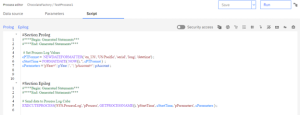
The code of the TestProcess1 process
The structure and the code for the Process Log cube are simple to implement. The benefits from having the log cube will be evident when we have to troubleshoot a process issue in production. A developer can easily copy the cube from one model to another to save time. However, knowing how the Process Log cube works will help us modify the cube and its process to get even more benefits from the Process Log cube.