
How to Update NetSuite System Accounts & Email Routing
Maintaining a clean and functional ERP environment requires occasional updates to system-generated emails and administrative accounts. Whether you are transitioning a personal user account to a generic NetSuite Admin role or troubleshooting email sender verification, precision is key. Failure to follow proper protocols can lead to account lockouts, misdirected communications, and broken workflow automation. This guide provides a step-by-step framework for updating user credentials and ensuring operational continuity for all system-driven notifications.
When changing the email or name on a shared administrative account, you must balance security (avoiding lockouts) with operational continuity (ensuring scheduled reports still send).
Update the User Profile
To transition an account to a generic system role (e.g., from “Jennifer Moreau” to “NetSuite Admin”):
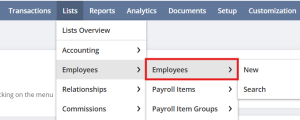
- Navigate to Employees > Lists > Employees.
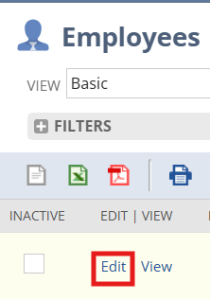
- Edit the target record. Change the Name to “NetSuite Admin.”
- Update the Email field to the new system address.

- Important: Save the original user’s email address in the Alternate Email field. This preserves the record history and provides a fallback for communication.
Verify Email Sender Routing
Updating the account name doesn’t automatically fix every “Sender” field in your automated processes.
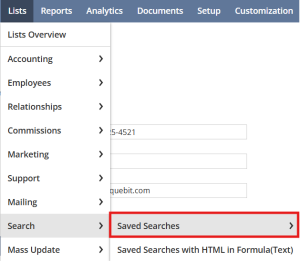
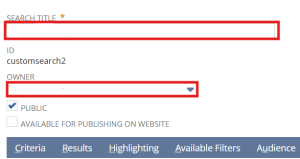
- Scheduled Searches: Go to Lists > Search > Saved Searches. Identify searches owned by the updated account.
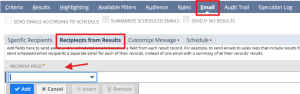
- Audit the “Recipient” Field: Check the Email tab of the Saved Search. Ensure the “Specific Sender” or “Author” is set to the new “NetSuite Admin” to avoid misdirected replies.
- Ownership Check: Confirm which searches are owned by individuals (like “Sean”) vs. the system account to ensure routing remains consistent with business needs.
Differentiate Scheduled vs. Alert-Based Emails
Not all system emails show up in the “Scheduled” queue.
- Alert-Triggered: Some emails (like Monthly Expense Reports) are triggered by record changes, not a clock.
- Search Adjustment: When monitoring email logs, adjust your filters to include “Send Triggered Emails.” Remove “Scheduled Only” filters to see the full picture of what the system is sending.
Post-Update Monitoring
Once the name and email are flipped, establish a “hyper-care” period:
- Notify Stakeholders: Inform department heads (e.g., accounting or project leads) that the sender name has changed.
- Monitor Logs: Check the Sent Email List for 24–48 hours to ensure no “Undeliverable” errors occur due to the credential change.
Pro Tip: If you run into issues with Project Task Assignees during this process, remember that NetSuite doesn’t support bulk-editing these natively. You’ll need to manually remove inactive users to save changes to those tasks.
Conclusion
Successfully managing NetSuite account updates requires a proactive approach to risk mitigation. By verifying email routing, distinguishing between scheduled searches and alert-triggered notifications, and enforcing strict login protocols, you can ensure that your system communications remain accurate and professional. These system enhancements not only improve reporting accuracy but also safeguard the integrity of your automated workflows. Regular audits of your sender verification settings will help maintain a seamless experience for both internal users and external stakeholders.