
Are you looking to enhance or update the functionality of your scripts in NetSuite? Understanding how to properly manage script deployments is key to keeping your system aligned with evolving business needs.
The NetSuite Script Deployment tool provides a flexible framework for customizing how and when your scripts run. In this guide, we’ll walk through how to update script deployments efficiently and highlight key features you should know.
Understanding Script Deployment Updates
In Oracle NetSuite, script deployments can be updated in two primary ways:
- Through the Deployments sublist on the script record
- By editing the Script Deployment record directly
The method you use depends on the script type.
For example, script types such as Portlet, RESTlet, Suitelet, and User Event scripts allow updates directly from the Deployments sublist. However, for other script types, this sublist is read-only. In those cases, you’ll need to edit the deployment through the Script Deployment record itself.
Working with Script Deployment Records
Editing a Script Deployment record gives you access to more advanced configuration options than the Deployments sublist.
Here are some key fields you can control:
- Target Record Type – Define which record the script applies to
- Custom ID – Assign a unique identifier for the deployment
- Status – Set the deployment to Testing or Released
- Event Type – Specify when the script executes (e.g., before submit, after submit)
- Execute As Role – Determine which role the script runs under
These options allow for precise control over how your script behaves in different contexts.
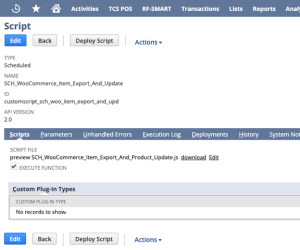
Using Subtabs for Advanced Configuration
Script Deployment records also include several subtabs that provide deeper insight and control:
- Scripts – View scripts associated with the deployment
- Schedule – Define when scheduled scripts run
- Execution Log – Review runtime logs and troubleshoot issues
- System Notes – Track changes and execution history
These tools are especially useful for debugging and auditing script performance.
Step-by-Step: Updating a Script Deployment
Follow these steps to update a deployment:
- Navigate to Customization > Scripting > Script Deployments
- Find the deployment you want to update
- Click Edit
- Make your changes across the main fields and subtabs
- Click Save to apply updates
Navigate to Customization > Scripting > Script Deployments.
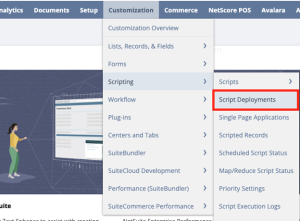
Locate the deployment you want to edit and click the corresponding Edit link.

Make necessary changes on the Script Deployment page and within each subtab.
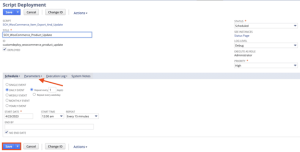
Click Save to apply your updates.
Tips & Best Practices
- You cannot edit a deployment while the script is running. Wait until execution is complete before making changes
- Use the Execution Log to verify behavior after updates
- Test changes in Testing status before moving to Released
Conclusion
Keeping your script deployments up to date is essential for maintaining efficient and reliable NetSuite operations. By understanding where and how to make updates, and taking advantage of the available configuration options, you can ensure your scripts continue to support your business as it grows and changes.