
How to Correct Bill Payment Applications in NetSuite (Step-by-Step Guide)
Correcting bill payment applications in NetSuite is a common task for accounting teams. Even with strong processes in place, discrepancies such as incorrect payment amounts, missing documentation, or system limitations can require manual updates.
In this guide, you’ll learn how to fix bill payment applications in NetSuite, unapply vendor credits, and avoid common errors that delay financial processing.
How to Edit a Bill Payment in NetSuite
Follow these steps to update a bill payment transaction:
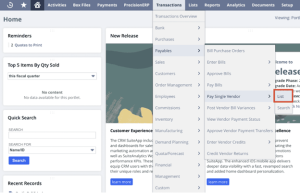
1. Navigate to: Transactions > Payables > Pay Single Vendor > List. (Tip: Non-admin users can use Global Search and type ‘Page: Pay Single Vendor’).
- Find the transaction you need to update and click ‘Edit’.
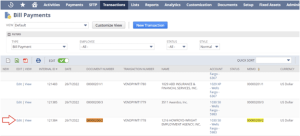
- Review the list of associated bills at the bottom of the page.
– Check or uncheck bills to include or remove them from the payment.4. Click ‘Save’.5. NetSuite will automatically recalculate totals and reopen affected bill records.
How to Unapply Vendor Credits in NetSuite
If your bill payment includes vendor credits, you must unapply them before deleting the payment. NetSuite does not automatically remove applied credits.
Steps:
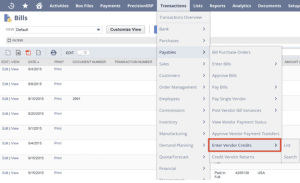
1. Navigate to: Transactions > Payables > Enter Vendor Credits.
(Or search: ‘Page: Enter Vendor Credits’)
- Click ‘Edit’ next to the vendor credit.
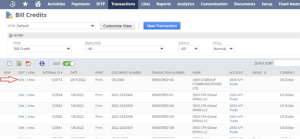
- Open the ‘Apply’ subtab.4. Uncheck the ‘Apply’ box next to the bill.5. Click ‘Save’.
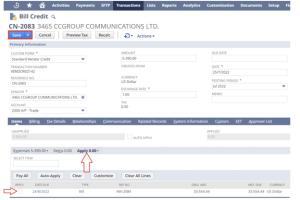
Once unapplied, the credit can be reused for other bills.
Best Practices for Accurate Bill Payments
To avoid errors when processing bill payments in NetSuite:
– Double-check payment amounts and invoice details
– Ensure all required fields are completed
– Review applied credits before finalizing payments
– Perform a final quality check before submission
These steps help reduce delays, improve accuracy, and streamline your accounts payable workflow.
Fixing bill payment applications in NetSuite doesn’t have to be complicated. By following the steps outlined above, you can quickly correct transactions, properly manage vendor credits, and maintain accurate financial records. Implementing these best practices will help your team reduce errors and improve overall efficiency in your accounting processes.