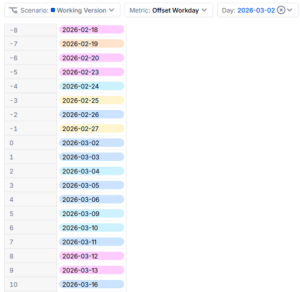
Creating Calendar Offset Metrics in Pigment
When writing formulas in Pigment, there may be a need to reference a calendar item that is offset from the one being calculated. Calendar Offset metrics can be created to solve this use case. They are two dimension metrics including the calendar dimension you need an offset for, and an Offset dimension. The examples below use an offset dimension that has the items “-365” through “365” as Numeric Items.
This example will run through the creation of a Day Offset metric with and without the consideration of working days. The steps can easily be repeated with other Calendar dimensions as needed in a Pigment Application.
Open the Formula Playground to create the metric from a formula. In the formula window enter “SHIFT( Day, Offset.Offset)”. the Day dimension could be replaced with whatever Calendar dimension the metric is being created for. “Offset.Offset” is a reference to the Numeric item reference of the Offset Dimension. This would need to be changed if the offset dimension is named differently.
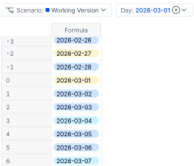 Once entered, the Metric structure will automatically be updated to include the “Day” and “Offset” dimensions. Pivoting the view will also allow the verification that it is calculating correctly.
At this point, the metric can be saved by clicking the “Create Metric” button at the top right of the Formula Playground window.
To limit the scope of the calculations, a Boolean property can be added to the Offset dimension to limit the items that are calculated. Once created, the filter can be applied to the metric by adding a Filter on the Boolean Property. This metric uses the following property as an example filter: [FILTER: Offset.’Day Offset’]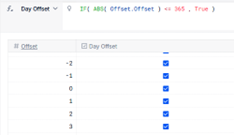
There could be a situation where the offset metric should skip certain Calendar items. In the case of the Day dimension, non-working days may be skipped to create an offset that only includes working days.
To accomplish this, the Day dimension needs some supporting Properties. In this example we have a “Working Day” Boolean that marks what days are working days, and a “Working Day Cumulate” numeric property to count the working days.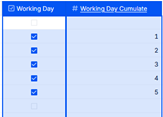
The formulas for these properties are below:
Working Day (Boolean):

Working Day Cumulate (Integer, Unique Item Values):

With those properties created, the following formula can be used to create an offset metric that will skip over non-working days.