
How do I gain immediate Insight into Key Metrics?
NetSuite contains many different forms and tools, each designed to serve a specific purpose. However, some capabilities are not available out of the box. One common example is tracking how many times the data within a form has been revised or updated. This type of functionality could be valuable across many areas of NetSuite, but it requires a custom solution to implement.
Developing custom functionality often involves multiple approaches that can achieve the same outcome, each requiring different levels of time and effort. Determining the best combination of solutions and the time needed to implement them is a key part of a consultant’s role. This post outlines the steps for creating a Minimum Viable Product (MVP) solution that captures and tracks revisions made to a Purchase Order.
Path:
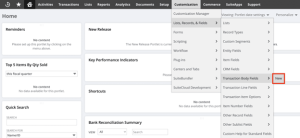
Transaction Body Field Form:
Navigate to Transaction Body Fields from the Administrator center using the path shown above and select New. NetSuite transaction fields come in two types: Body and Line. Body fields appear in the main section of the form, while Line fields appear within a subtab as a column associated with list items.
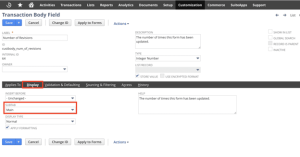
After selecting New, complete the form to define the custom field. Enter a Label (and optional description), then set the Type to Integer Number. In the Applies To tab, select Purchase so the field is available on purchase forms. Under the Display tab, choose Main in the Subtab list. Finally, click Save to create the field.
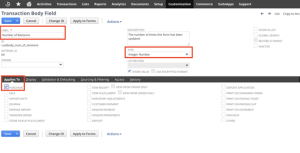
Field Display Subtab:
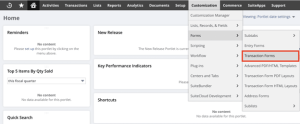
Path:
Next, navigate to the Transaction Forms list using the path shown below. Select the Purchase Order form you want to modify to include the revision functionality. This may involve editing NetSuite’s Standard form or a custom form.
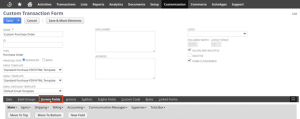
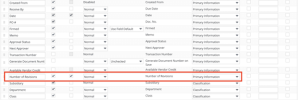
On the Custom Transaction Form edit page, open the Screen Fields subtab to view and configure available fields. Locate the field created in the previous step and ensure both Show and Mandatory are checked, and that the Field Group is set to Primary Information. After confirming these settings, click Save.
Screen Fields:
Screen Field Settings:
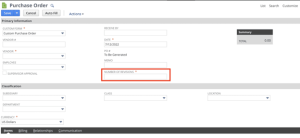
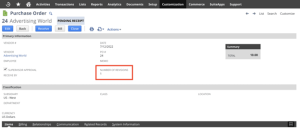
With the custom field created and the Purchase Order form updated to include the mandatory Number of Revisions field, the next step is testing. Attempt to create and save a Purchase Order without entering a value in this field. A pop-up message should appear indicating that the field is required. Then, enter a valid integer value and save the form successfully. The Purchase Order should display with the custom field populated.
If you encounter any issues during these steps, consider reaching out to NetSuite experts for assistance.
Mandatory Field:
Final Form Output:
NetSuite provides a wide range of built-in features, but unique business requirements often call for tailored solutions. Creating custom fields and applying them to transaction forms is a quick yet effective way to extend NetSuite’s functionality and capture important data. Even simple implementations can deliver meaningful value and immediate insight. As business needs evolve, these solutions can be revisited, refined, and expanded to support more advanced workflows and reporting capabilities.