
Using Formats on Multiple Dimensions in Planning Analytics
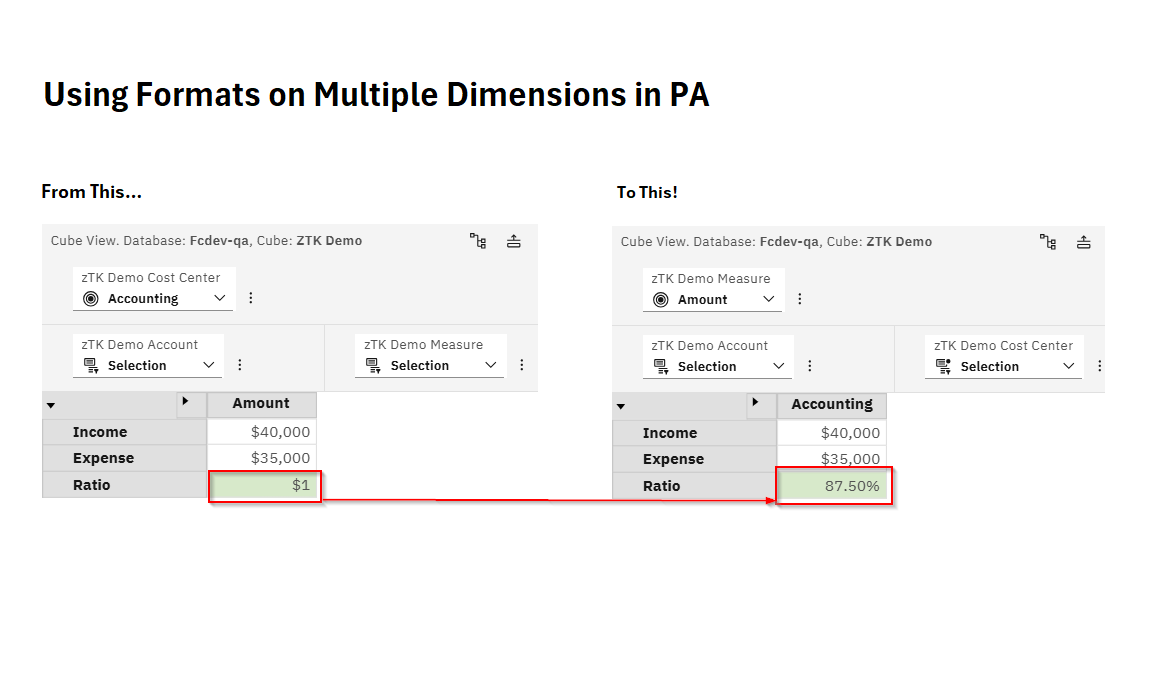
IBM Recommends applying formats to a single dimension, typically the last dimension in the cube which is commonly referred to as the “measures” dimension. However, there may be instances where a particular display of data requires a different set of formats. For instance, when you are trying to display a mix of amounts and percentages in the same view. This article will walk through an example of using formats on multiple dimensions and the governance of those formats within Planning Analytics.
Example Cube Setup
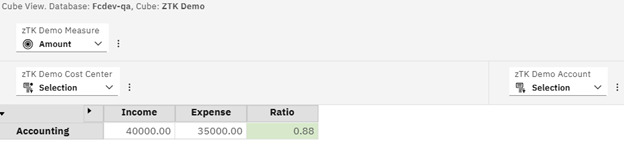
We will be using a simple 3 dimensional cube for this example. Cost Center, Account and Measure will be our dimensions. The measures dimension will have a single element in it called “Amount”. The Account dimension has Income, Expense and Ratio. The Ratio is a simple calculation of Expense / Income.
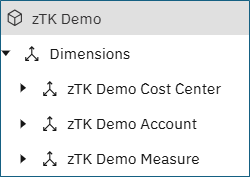
Applying a format to the Measure dimension
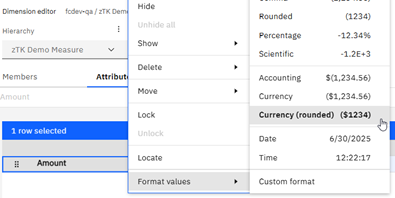
The default behavior for the cube is to show values in a rounded currency format. So we use the dimension editor to apply this format in the measure dimension:
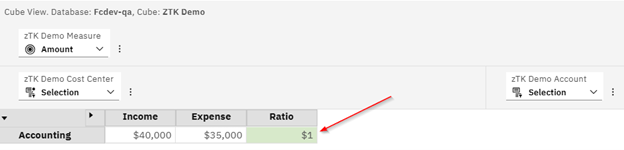
After applying the format, we notice that our Ratio stat account has also had the rounded currency format applied. We would like the Ratio to be displayed as a percentage.
Applying formats to the Account dimension
We will be applying additional formats to our cube using multiple dimensions. It is important to note that when doing this the order of the dimensions in the view will impact the way the data is displayed. How this order is applied is outlined in the last section of this document.
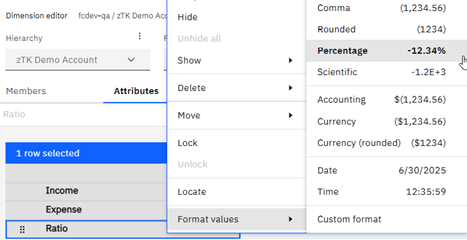
In the dimension editor for the Account dimension, we have selected Percentage on the Ratio element.
When refreshing our view we can now see that the Ratio element is displayed in a percentage format:
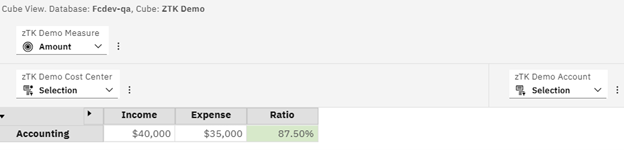
Note: We did not need to update the formats for the other accounts since the default format is already being applied from the measures dimension.
What happens when we stack dimensions?
As mentioned earlier, the display format is impacted by the order of the dimensions in the view. When dimensions are stacked, PA will start with the columns and look from the bottom layer to the top and apply the first format found.
Stacking Columns
Using our example if I move the Measure dimension to the columns you can see that the format is being picked up from the Measure dimension only ( Currency Rounded ).
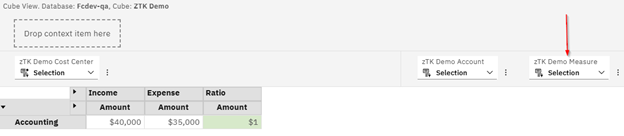
However, if I move the Account dimension below, or to the right, of the Measure dimension you can see the Account format being applied to Ratio and then the default being applied to the rest of the accounts.
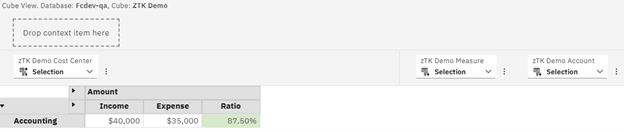
Stacking Rows
We see the same behavior when stacking rows. If no format is found in the columns PA will look to the rows next. The lowest level ( furthest to the right ) wins.
Here we have Measure on the right in the row stack:
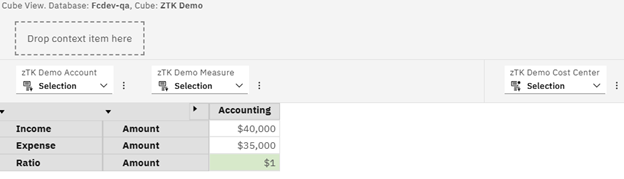
When we swap we get the formatting from the Account dimension:
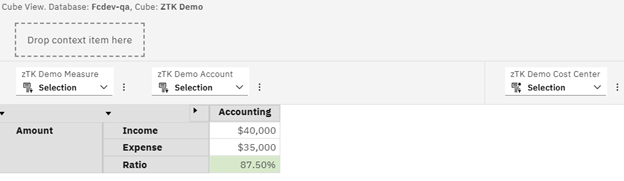
Note: The Measure could be moved to the Title section or benched since these areas are checked last for formats.
Multiple Dimension Format Governance Order
In summary, multiple dimension formats are applied in the following order:
- Columns – Lowest ( furthest right ) to highest
- Rows – Lowest ( furthest right ) to highest
- Title – Lowest ( furthest right ) to highest
- Bench – Bottom to Top